




Asus B150M + TPM 2
Almost 10 years ago I built a new computer for my father. Given that he lives in a place where the electricity is slightly unstable (a few routers and power supplies have been fried), I decided to tackle this in several ways:
- add power surge protection (managed to fry one of those);
- add an old UPS of mine;
- select a good quality motherboard.
This post is about that last one, the good quality motherboard (and a specific feature of it). I have suffered from the capacitor plague, so that was something I was quite keen to avoid. I ended-up choosing an Asus B150M-A/M.2 for the following reasons:
- solid polymer capacitors from Fujitsu (not affected by the capacitor plague, longer life than electrolytic capacitors);
- more modern VRM design;
- various protections advertised by the constructor (not sure how much of those were marketing bullshit or actual things):
- ASUS LANGuard - Protects against LAN surges, lightning strikes discharges;
- ASUS ESD Guards - Enhanced ESD protection;
- ASUS DIGI+ VRM - 3+1+1 Phase digital power design;
- ASUS DRAM Overcurrent Protection - Enhanced DRAM Overcurrent Protection;
- ASUS Stainless-Steel Back I/O: 3X corrosion-resistance for greater durability;
- the motherboard has a “separate” part for the audio circuit, isolating it from the rest, hence reducing noise. I took that as a sign that they tried to do a good motherboard.
- extensibility:
- CPU: I bought the cheapest supported one I could find, an Intel Pentium G4400 (Rating: 2567), but can support much faster ones;
- RAM: I installed 8 GB of RAM, which was quite good at the time, and it supports up to 64 GB;
- Storage: 6 SATA-3 connectors, I installed an old SSD I already have, but can also support an M.2 SATA drive or an M.2 PCIe 3.0 ×4 NVMe drive.
And 10 years later, I have to say I’m quite surprised how good that choice was:
- obviously it’s still working;
- I updated the storage to an M.2 SATA SSD from another computer, and there is still room for performance improvement by upgrading to an M.2 NVMe SSD;
- I recently bought a second hand Intel Core i7-7700K (Rating: 9634), which, I think, is the fastest CPU supported by this motherboard (I bought it while they are still easy to find, my father was still happy with the Pentium);
- I was thinking of upgrading the memory… but the AI frenzy struck, and now memory is insanely expensive. That being said, the computer is running Linux and 8 GB is still more than enough;
- and then I saw there was a “TPM connector” on the motherboard… 😯
Yes, that was a very long introduction for the subject of this post: TPM2 on the Asus B150M.
A last word on this motherboard choice, not everything is beautiful:
- the latest firmware version is from May 2018, so the motherboard was supported for only 2 years;
- the firmware is not available through LVFS, so updates had to be done old-school style.
TPM connector
From the motherboard’s manual:
TPM connector (14-1 pin TPM)
This connector supports a Trusted Platform Module (TPM) system, which can securely store keys, digital certificates, passwords and data. A TPM system also helps enhance network security, protects digital identities, and ensures platform integrity.
That’s all. Nothing more about it.
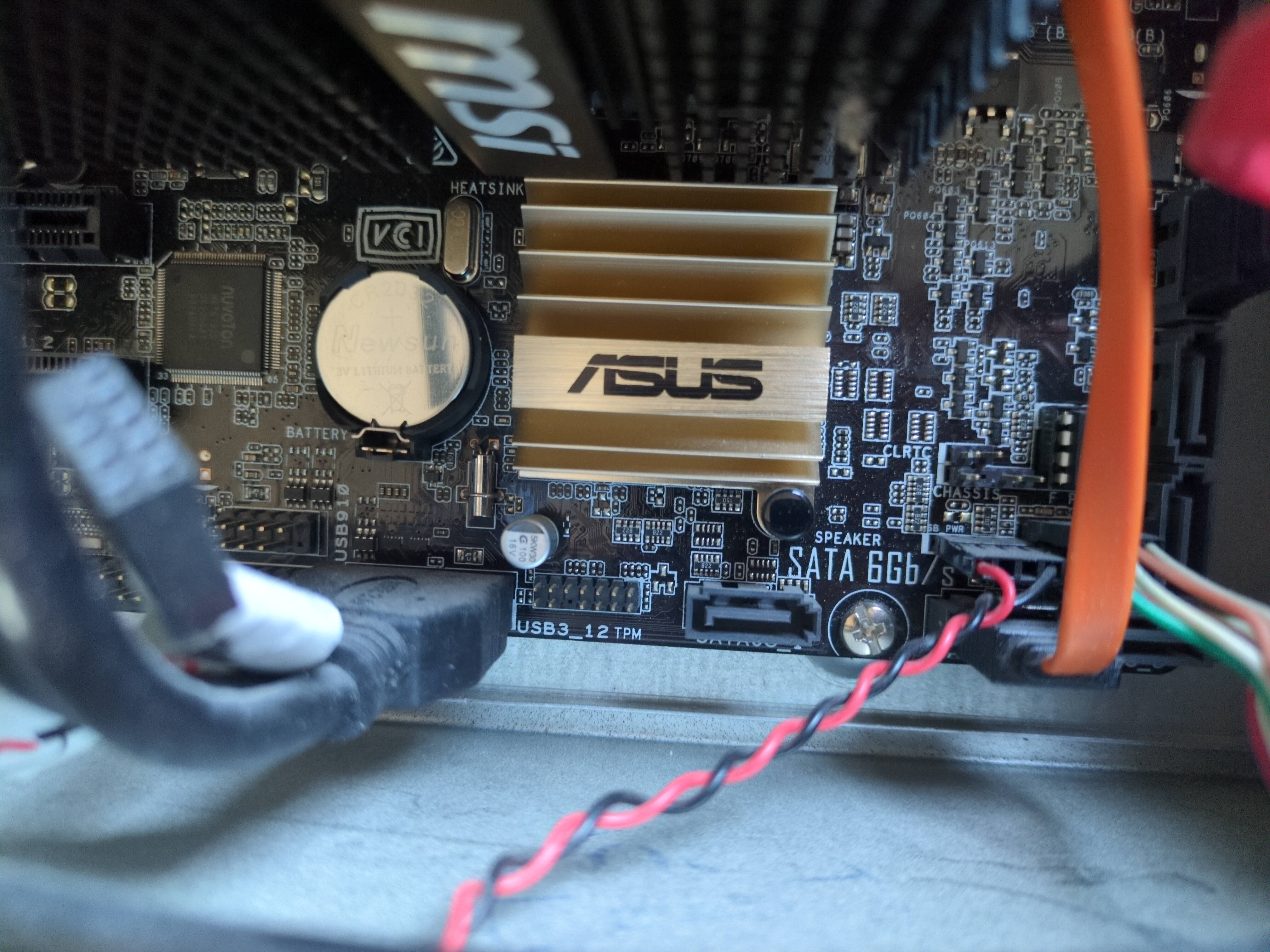
First of all, I didn’t even know that a discrete TPM could be on an external board. I thought it must be highly integrated in the motherboard, not something that you can add as an option.
Now that we know that the motherboard has a TPM connector, the question is: where to find a compatible TPM module?
TPM module
Asus website is not keen on giving more information about the available modules, their compatibility, etc. It looks like there are several models, with a different number of pins, and different models with the same number of pins too.
I ended up spending 20 € on a “TPM2.0 LPC 14 Pin Module” with an Infineon SLB9665 chip, said to be compatible with Asus “TPM-M R2.0” module, which I think is the one supported by that motherboard… And it is 🎉.
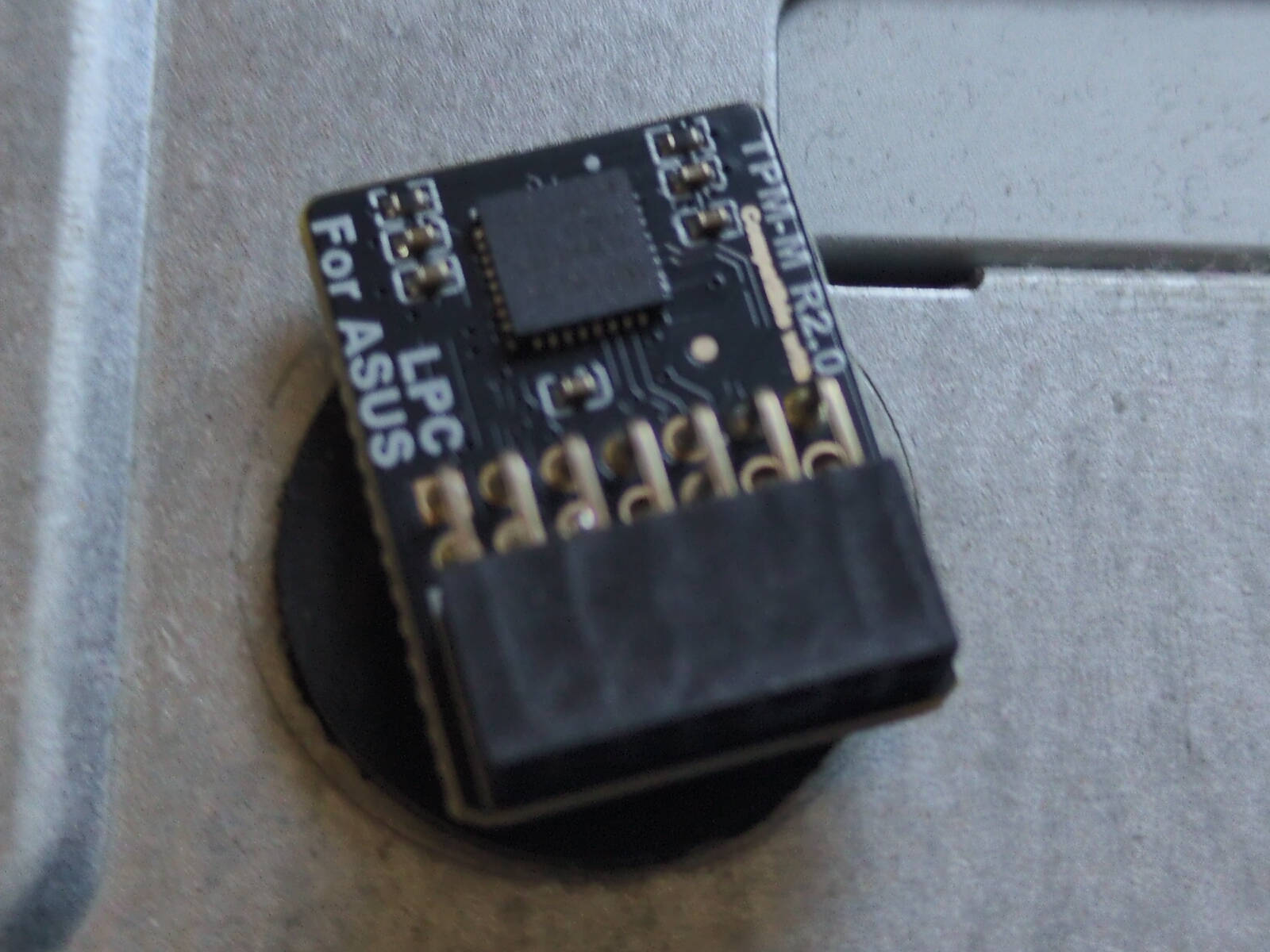
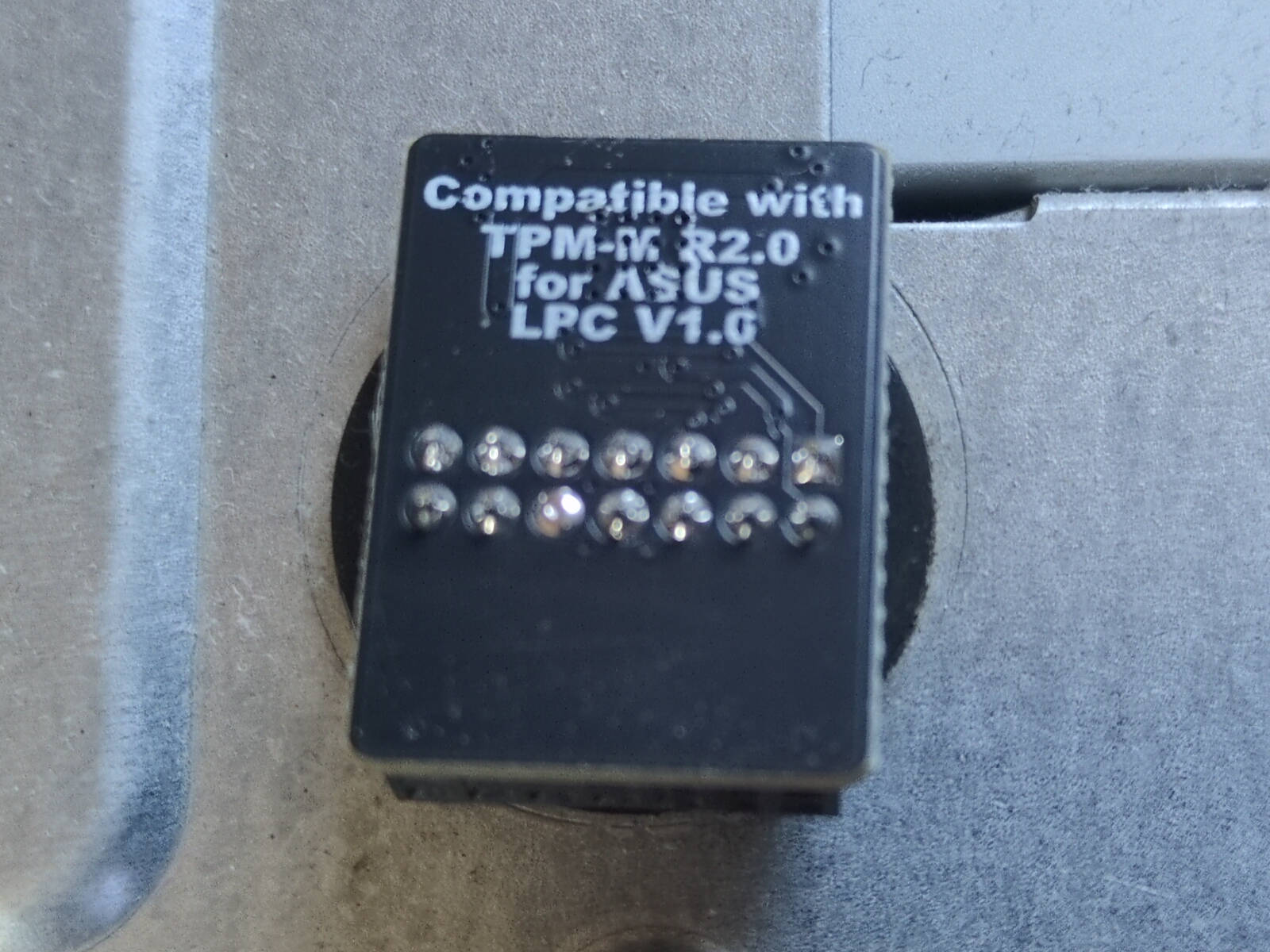
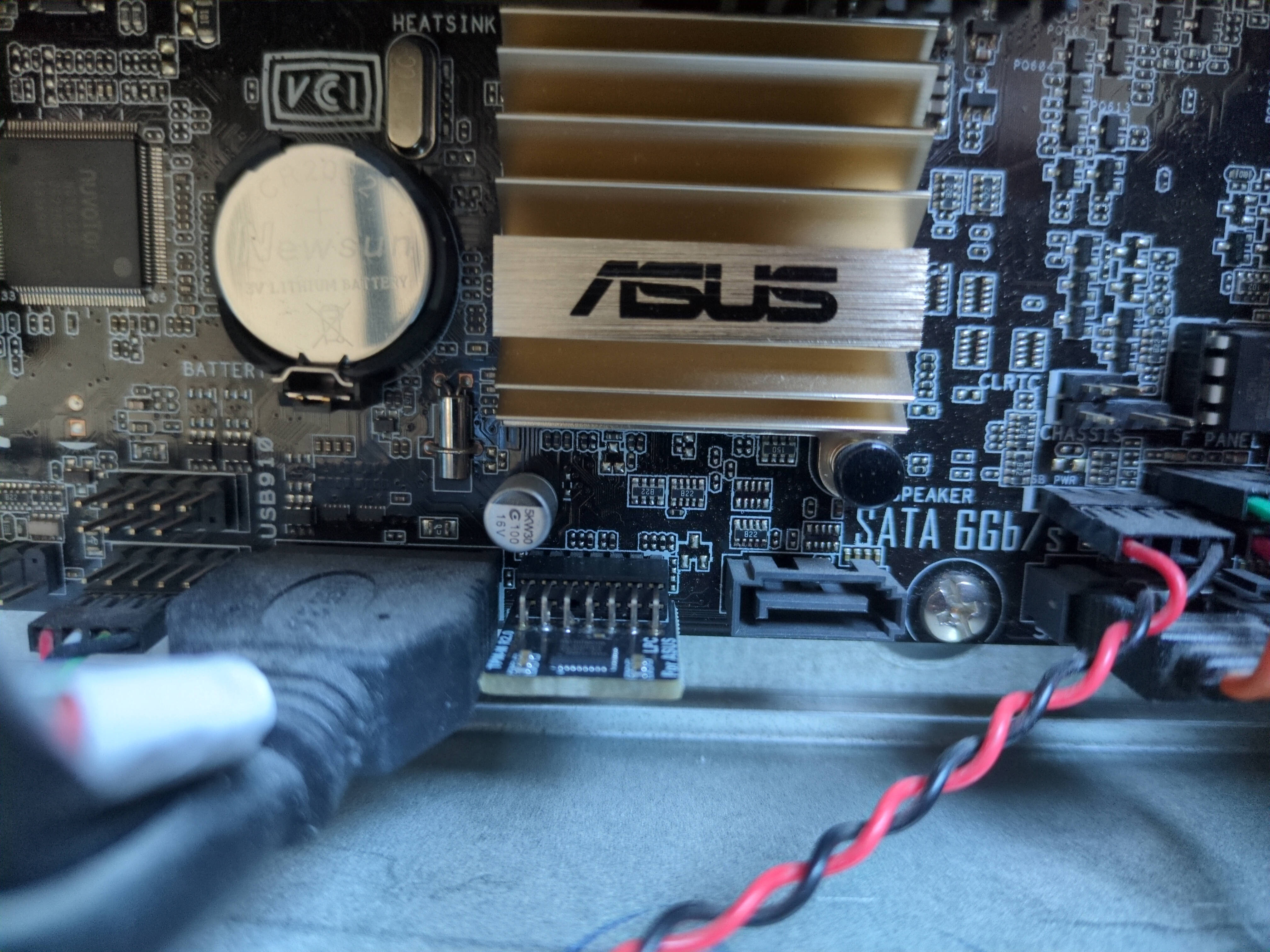
It’s worth noting that a TPM 2.0 is a requirement for Windows 11. That requirement is the main reason that made 400 million working computers obsolete… If you needed any more proof that Microsoft is not here to save the planet but only their shareholder wallets… But this TPM module won’t make it work with Windows 11, Microsoft arbitrarily decided to support only 8th generation and newer for Intel CPUs, and this motherboard is for 6/7th gen. Though Rufus may help you create a Windows 11 image with compatibility checks disabled so you can install Windows 11.
Anyway, why running Windows when almost every other operating system is better?
TPM configuration
In the motherboard BIOS, in the “Advanced” menu, there should be a “TPM20 Device Found” message. Here, make sure it’s enabled and change the “Pending operation” to clear it.
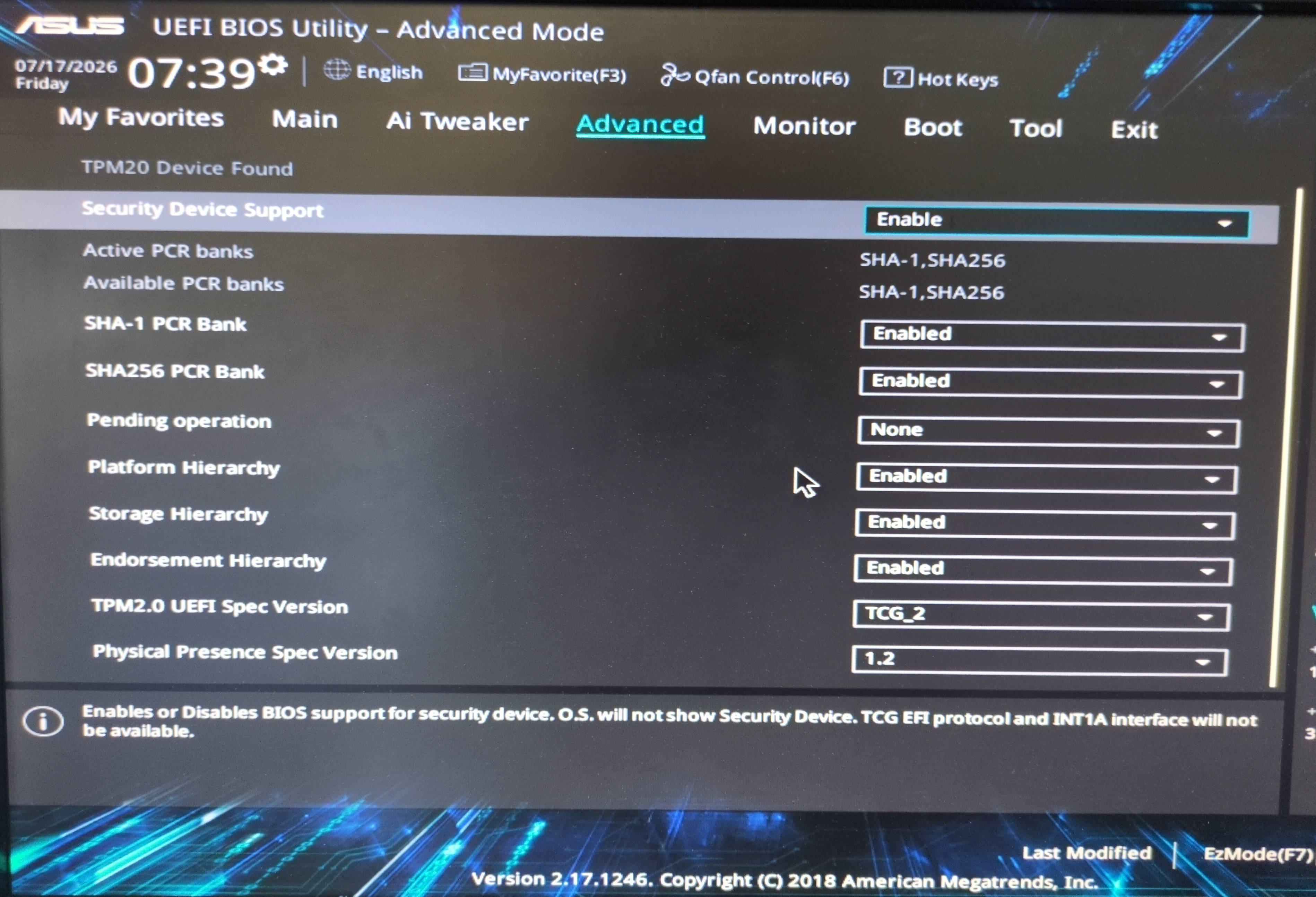
Then, on save and exit, I got the following error message:
Could not create MokListRT: Volume Full
Could not create MokListXRT: Volume Full
Could not create SbaLevelRT: Volume Full
Could not create MokListTrustedRT: Volume Full
Something has gone seriously wrong: import_mok_state() failed: Volume Full
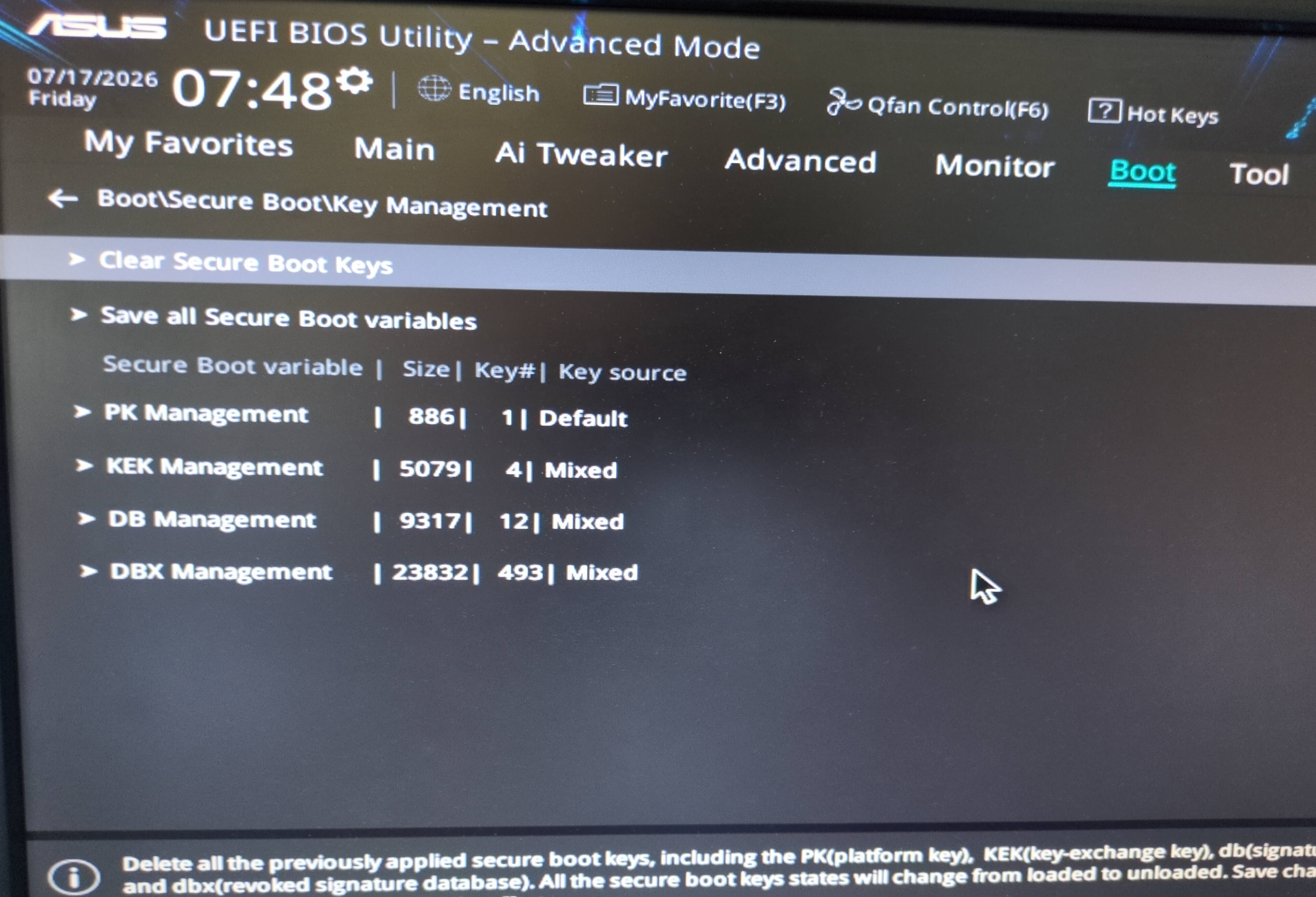
The solution to that is to clear the secure boot keys in the BIOS, Boot → Secure Boot → Key Management, then “Clear Secure Boot Keys”. And Linux booted as usual.
TPM usage
That computer’s hard drive is LUKS encrypted. So when booting up, it requires a passphrase to unlock the drive, then the username and password to log into the user’s session.
So for a bit of convenience, the TPM can help bypass the first step. Basically, if the motherboard firmware and the boot partition have not been tampered with, the TPM can release the LUKS’ passphrase.
To do so:
- locate the LUKS partition with
lsblk -f, that should be the one with thecrypto_LUKSFSTYPE, in my case it’s/dev/sda3. - create a recovery key just in case (to store in a safe place):
sudo systemd-cryptenroll /dev/sda3 --recovery-key - install required tools (will use dracut to generate the initramfs instead of the default tools installed by Debian):
sudo apt install tpm2-tools dracut - add the TPM in one of the LUKS key slots:
systemd-cryptenroll /dev/sda3 --tpm2-device=auto --tpm2-pcrs=7
“--tpm2-pcrs=7” is the most common configuration, it means the TPM will release the LUKS encryption key only if Secure Boot measurements are OK. There are other more restrictive options, but that’s a good start. - ensure that
/etc/crypttabcontains the following options for the LUKS partition:x-initrd.attach,tpm2-device=auto - configure TPM in dracut by creating the following file:/etc/dracut.conf.d/tpm2.conf
hostonly="yes" add_dracutmodules+=" tpm2-tss " - then re-generate the
initramfs:dracut -f --regenerate-all
Reboot, and now the computer directly arrives on the user prompt.
But as always, if it’s more convenient, it’s probably less secure. And that’s true in the present case, anyone can start the computer, and the drive will be automatically unlocked, removing a security layer.







 Comments
Add one by emailing me.
Comments
Add one by emailing me.